About the Approve & Post page
As the finance manager, one of your main tasks is to review all transactions and items that are theoretically billable before they are invoiced. This step happens on the Left Navigation Menu > Contracts > Approve & Post > Approve & Post page.
The activities of technicians generate a stream of potential or pending billing items. But nothing will end up on an invoice unless you approve it. Before you do so, you have fairly unlimited powers to change the billing item. You can change the billable amount or make billable items non-billable, edit any field on the billing item and even the underlying ticket, and keep billing items off an invoice or bill them in advance.
The Approve & Post page is a tabbed page, with a separate tab for each type of billing item. Each tab has powerful customizable search filters. Some filters depend on the item type. Others, such as the Date and Organization (Cost) filters, persist on each tab, so it is easy to approve all items for a particular organization.
Editing the billable amount in the table
Each tab (except for Milestones) can display columns where you can edit the billable amount right in the table, and any changes are saved by clicking Save Changes above the table. This type of edit applies only to the specific item and is the quickest way to change the billable amount. Autotask will preserve both the original price and the posted amount.
- On the Labor tab, the billable amount is changed by changing the Hours to Bill or the Hourly Rate.
- On the Charges tab, the Extended Price column can be edited. Unit prices are recalculated.
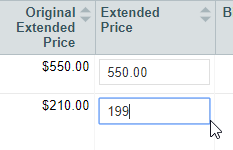
- On the Subscriptions and Recurring Contracts tabs, the Billable Amount column can be edited.
Other fields, however, cannot be edited in the table.
Opening and editing the billing item
For labor on incomplete tickets, charges, and recurring contract services, the approver can edit not only the labor entry, charge, or service, but also the underlying ticket or contract. This approach is usually preferable to editing items in the table, since you will be able to correct issues at the source. On the Approve & Post page, you have access to all billing item fields, for example the Summary Notes field on a time entry to improve spelling.
To access this option, hover over the context menu.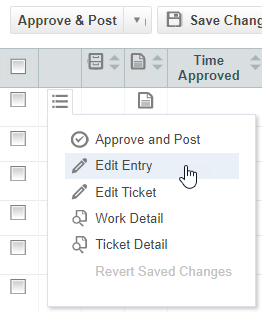
On a recurring services contract, you can change the price for all still unposted service periods.
Approving and posting items
When you have reviewed and finalized all items in the table, you are ready to approve and post.
- To post selected items, select the check box in the first column and then select Approve & Post Selected.
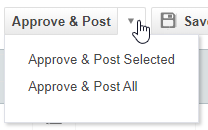
- To post all items in the table, select Approve & Post All.
The next step is invoicing. To navigate to the Invoicing / Items to Invoice page, click Items to Invoice.


