About time approval
Timesheets
Setting timesheet policies
NOTE Requiring your employees to submit timesheets is optional. You can select the Resource is not required to Submit Timesheets check box on the Resource Management page to exempt users. This may make sense for yourself (why approve your own timesheet) or purely administrative resources, but it imposes a discipline on technicians to account for their time and take understandable notes you can review without reviewing individual tickets. In particular, it makes sense if you do not act as the billing manager, because timesheet review will be the only reviewing step for you.
If you are the owner, you must decide if you want your users to track regular time, that is, time spent in activities that are not associated with a customer, such as internal meetings or trainings. You should also determine whether you want your users to always submit at least 40 hours a week and thus account for every hour they are supposed to be on the job.
For your technicians, make sure you set their Weekly Billable Hours Goal on the HR tab of the Resource Management page: Left Navigation Menu > Admin > Admin Categories > Organization Settings & Users > Resources/Users (HR) > Resources/Users (HR) > Weekly Billable Hours Goal.
Configuring timesheet system settings
We recommend that you manage your team's vacation time and other time off categories in Autotask, so it is clear who is available every day. By default, Floating Holidays, Personal Time, Sick Time, and Vacation are enabled for your Autotask instance.
To disable an internal time code because you are not offering this type of time off to your employees, go to Left Navigation Menu > Admin > Admin Categories > Features & Settings > Application-Wide (Shared) Features > System Settings > Timesheets and clear the check box next to the setting.
To rename an internal code for regular time or time off, go to Left Navigation Menu > Admin > Admin Categories > Features & Settings > Finance, Accounting & Invoicing > Billing Codes > Internal Time tab and open the Edit dialog box from the context menu.
Approving or rejecting submitted timesheets
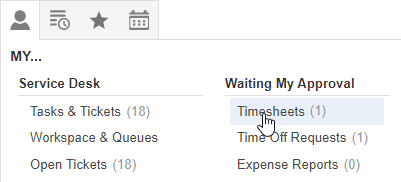
You are configured as the timesheet approver for all your employees. To view a list of submitted timesheets, go to My > Waiting My Approval > Timesheets: