Reporting on Xerox PageConnect/XPPS contracts
There are no ready-made reports for Xerox PageConnect/XPPS contracts, but you can build a LiveReport. To calculate the profit from one or several PageConnect/XPPS contracts, set up the following report:
NOTE This report assumes that you have set up a Contract Category for PageConnect/XPPS you can use to filter on. Refer to Contract categories.
- In the Home, Reports or Admin module, open LiveReports Designer.
- Click New. The LiveReports Designer page opens.
- On the General tab, enter the name for the report (example: "Xerox PageConnect/XPPS Profitability") and a Description, and select the Recurring Contracts Profitability family.
- On the Columns tab, select the following columns for your report (in the exact order):
Organization Name (Company)
Contract Name (Contract)
Billing Item Type (Billing)
Billing Item Name (Billing)
Cost Units/Hours (Billing)
Total Cost (Billing)
Extended Price (Billing)
Billed Amount (Billing)
Profit (Billing)
- On the Headings tab, click the Heading radio button for Organization Name (Company), Contract Name (Contract), and Billing Item Type (Billing). For Contract Name (Contract), also check Include in Next Highest Heading. Check Subtotal for Extended Price (Billing), Billed Amount (Billing) and Profit (Billing).
- On the Filters tab, add Billing - Billing Item Date and Contract - Contract Category drop-down to the required Filters, and Organization - Organization Selector and Contract - Contract Selector to the optional Filters.
- On the Filter Values Tab, for Billing - Billing Item Date, set the Selection to Dynamic, and the Default Filter to Current Month. For Contract - Contract Category drop-down, set the Default Filter to Xerox PageConnect/XPPS (or whatever you named your PageConnect/XPPS Report Category).
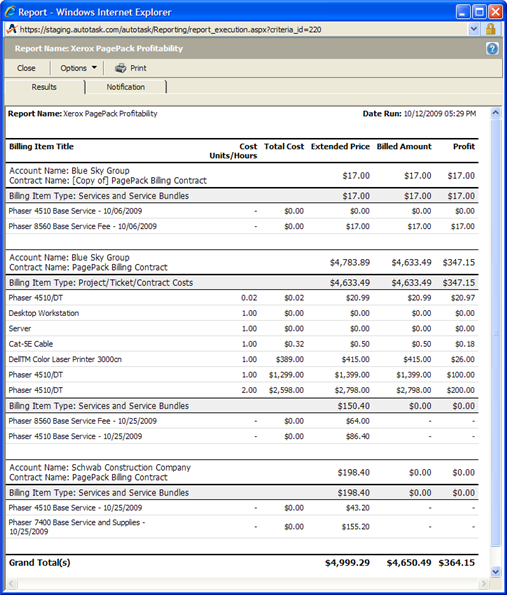
- Save your report. The report will look like this: