Ticket Triage Dashboard
 Security and Navigation
NAVIGATION Left Navigation Menu > Workforce Management > Ticket Triage > Dashboard
The Ticket Triage Dashboard gives you a centralized view of how Ticket Triage is performing across your service desk. It lets you:
-
See which tickets need attention, which were auto-updated by AI, and which failed triage.
-
Review and manage AI field suggestions (Priority, Queue, Primary Resource, etc.).
-
Understand the effort and outcomes of triaged tickets using key metrics like:
-
Actual hours per ticket.
-
Mean time to resolution.
-
Total tickets triaged and time saved.
-
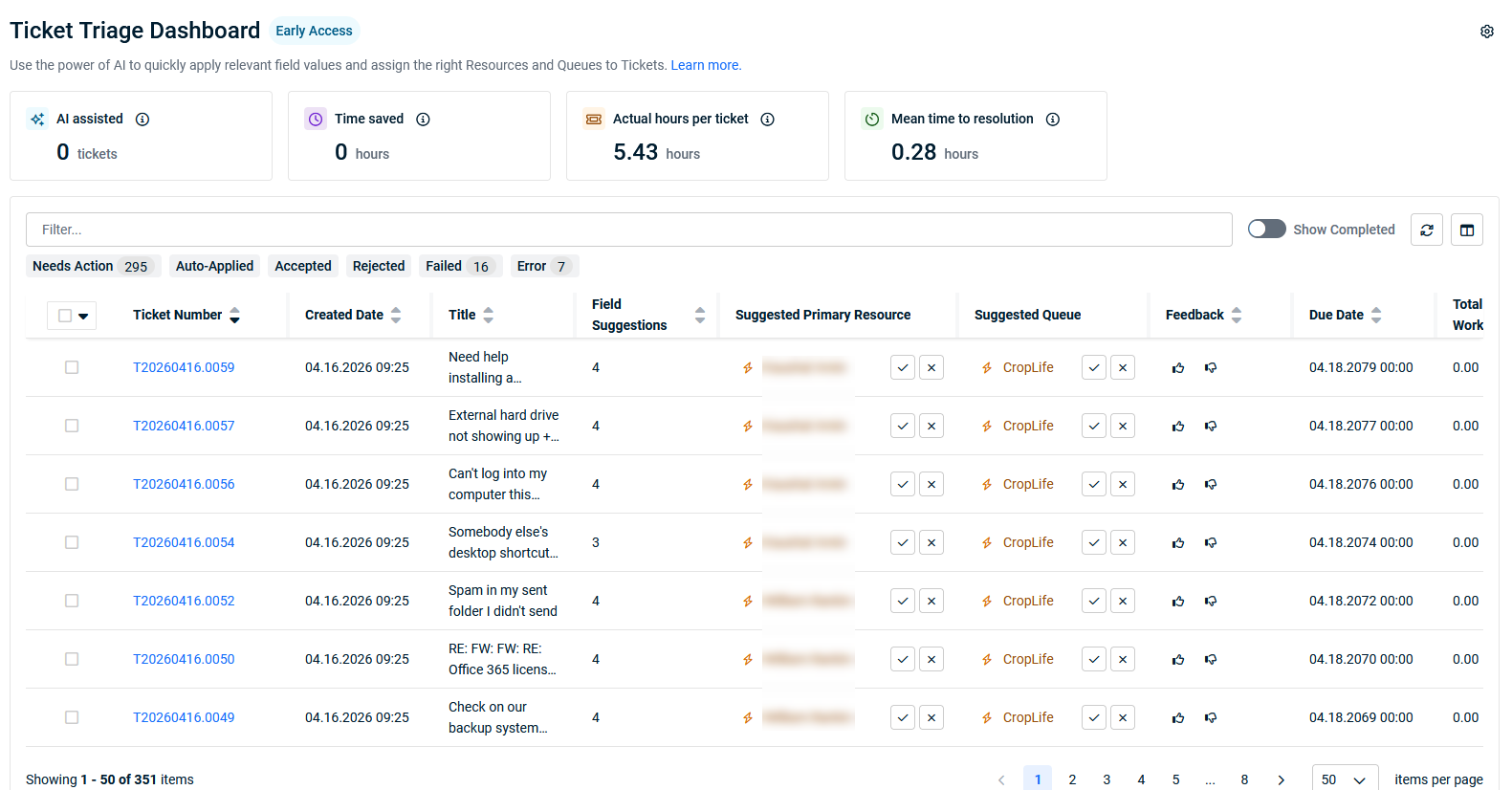
Use this page to monitor, tune, and trust Ticket Triage, and to quickly correct or complete tickets where AI needs human input.
Why is this useful?
-
Transparency and control
-
See exactly what Ticket Triage is doing: which tickets it touched, what it suggested, what it changed, and where it needs help. With the Accepted and Rejected tabs, you can also review which suggestions were accepted by users and which were rejected, providing a full audit trail of AI and human collaboration.
-
-
Operational insight
-
Track time saved, hours per ticket, and mean time to resolution for triaged tickets.
-
Use these metrics to evaluate the impact of Ticket Triage on your Service Desk.
-
-
Continuous improvement
-
Use the Needs Action, Failed, Accepted, and Rejected tabs to refine:
-
Ticket Data Analysis scope.
-
Triage Actions and confidence thresholds.
-
Assignment Eligibility for resources and queues.
-
-
Over time, this leads to more accurate auto-triage and assignment.
-
-
Faster triage and better routing
-
Dispatchers and coordinators can focus on exceptions, while Ticket Triage handles the bulk of routine classification and assignment.
-
This helps your team respond faster and route tickets more consistently.
-
How to use the Ticket Triage Dashboard
The Ticket Triage Dashboard helps you monitor tickets that need review, validate auto-applied changes, and troubleshoot triage failures. Use the following workflows to get the most value from the dashboard.
Monitor tickets that need attention
Use the Needs Action tab to find tickets where Ticket Triage has provided suggestions but human validation is still required.

- Navigate to Left Navigation Menu > Workforce Management > Ticket Triage > Dashboard to open the Ticket Triage Dashboard and click the Needs Action tab.
-
Optionally sort or filter the ticket list to focus on:
- Priority to handle high-priority tickets first.
- Field Suggestions to start with tickets that have a larger number of suggested changes.
- Queue or Company to focus on key customers or service areas.
- In the ticket grid, click a Ticket Number to open the ticket.
-
In the ticket, review the suggested changes from Ticket Triage, such as:
- Priority.
- Queue.
- Primary Resource.
- Issue Type or Sub-Issue Type.
- Accept, adjust, or reject the suggestions as appropriate for the ticket.
- Repeat this process until all high-priority or time-sensitive tickets on the Needs Action tab have been reviewed.
Regularly reviewing the Needs Action tab ensures that AI-assisted tickets do not get stuck waiting for human input.
Review auto-applied triage
Use the Auto-Applied tab to confirm that Ticket Triage is making appropriate updates when it is configured to auto-update fields.

- Navigate to Left Navigation Menu > Workforce Management > Ticket Triage > Dashboard to open the Ticket Triage Dashboard, click the Auto-Applied tab.
- Review the list of tickets where Ticket Triage automatically updated fields.
- Sample a set of tickets by clicking their Ticket Number links.
-
In each ticket, verify that the AI-applied changes look correct, for example:
- The ticket is in the expected Queue.
- The Primary Resource is an appropriate assignee.
- The Priority and categorization make sense.
-
If you see patterns you do not want, adjust your configuration by:
- Updating Workflow Rules or Triage Actions to narrow the scope or switch fields from auto-update to suggestions only.
- Refining Ticket Data Analysis or Assignment Eligibility to better control which tickets, queues, and resources are included.
Periodically reviewing auto-applied tickets helps you build confidence in Ticket Triage and fine-tune how it behaves.
Investigate failures
Use the Failed tab to identify tickets where Ticket Triage could not complete triage and to correct underlying configuration or data issues.

- Navigate to Left Navigation Menu > Workforce Management > Ticket Triage > Dashboard to open the Ticket Triage Dashboard, click the Failed tab.
- Review the list of tickets that Ticket Triage could not triage successfully.
- Click a Ticket Number to open a representative ticket.
-
In the ticket, look for common issues, such as:
- Missing or unsupported ticket category, queue, or required fields.
- Tickets that fall outside of your configured Ticket Data Analysis scope.
- No eligible queues or resources based on your Assignment Eligibility settings.
-
Review related configuration for:
- Kaseya Intelligence Ticket Triage settings. Refer to Configure Ticket Triage.
- Workflow Rules and Triage Actions.
- Assignment Eligibility for queues and resources.
- Correct any configuration or data issues you identify. Depending on your environment and workflow, you may be able to re-run triage on affected tickets or allow it to run on future updates.
Monitoring the Failed tab helps you quickly identify gaps in configuration or data that reduce the effectiveness of Ticket Triage.
Review accepted suggestions
Use the Accepted tab to review tickets where users have accepted one or more Ticket Triage suggestions.

- Navigate to Left Navigation Menu > Workforce Management > Ticket Triage > Dashboard to open the Ticket Triage Dashboard, click the Accepted tab.
- Review which fields were accepted (for example, Priority, Queue, Primary Resource).
- Use this tab to audit user engagement with AI recommendations, identify which types of suggestions are most frequently accepted, and track adoption and trust in Ticket Triage.
- If you notice patterns (for example, certain fields are always accepted), consider updating your configuration to auto-apply those fields.
Review rejected suggestions
Use the Rejected tab to review tickets where users have rejected one or more Ticket Triage suggestions.

- Navigate to Left Navigation Menu > Workforce Management > Ticket Triage > Dashboard to open the Ticket Triage Dashboard, click the Rejected tab.
- Review which fields were rejected and any feedback provided.
- Use this tab to identify areas where AI recommendations may need improvement, spot trends in rejection (for example, certain queues or priorities), and gather feedback for tuning AI models or triage rules.
- If you see frequent rejections for specific fields, review your Triage Actions, confidence thresholds, or training data.
Dashboard tile definitions and table actions
Tiles
| Dashboard tile | Definition |
|---|---|
| AI assisted | Displays the number of tickets in the past seven days where Ticket Triage either automatically applied field values or where suggested values were accepted. |
| Time saved | Displays the total time saved by Ticket Triage for tickets triaged within the past seven days, based on the assumption that each ticket would require five minutes to triage manually. |
| Actual hours per ticket | For tickets triaged by Ticket Triage within the past seven days, this metric represents the average number of hours worked per completed or resolved ticket. |
| Mean time to resolution | For tickets triaged by Ticket Triage within the past seven days, this metric represents the average resolution time per completed or resolved ticket, excluding waiting time. |
Table actions
| Table icon | Action |
|---|---|
| Filter... |
Used to filter results. Click to make a filter selection or click in the field and begin typing a filter name. Available filters
NOTE When applying a filter, ensure the corresponding column is visible to accurately review the results. This is especially useful when multiple filters are applied simultaneously. |

|
Refresh the grid view. |

|
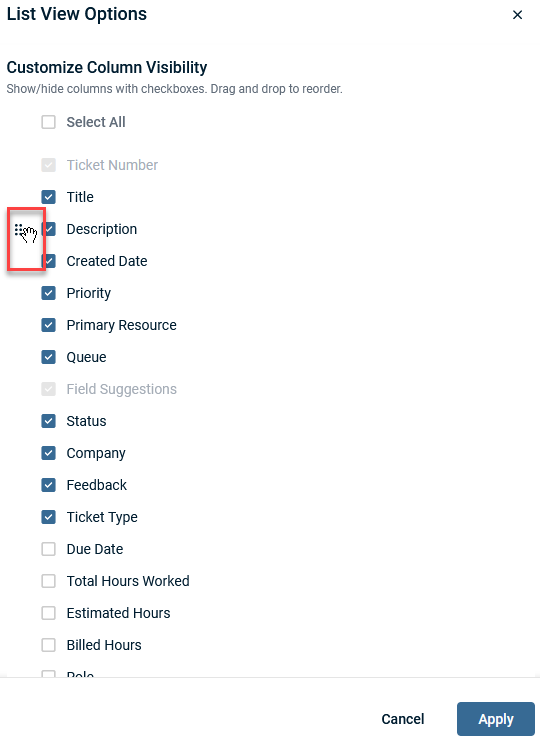
Select the column chooser to customize column visibility. The order in which columns appears can be changed by dragging up or down, and dropping the column name using the
NOTE The Feedback column allows you to indicate whether a Ticket Triage decision was helpful by providing a simple thumbs-up or thumbs-down response. This feedback is used to improve future Ticket Triage decisions. Over time, it helps Kaseya Intelligence learn which recommendations are effective for your team and which may need adjustment. |
| Needs Action | Select this tab to find tickets where Ticket Triage has provided suggestions but human validation is still required. |
| Auto-Applied | Select this tab to confirm that Ticket Triage is making appropriate updates when it is configured to auto-update fields. |
| Failed | Select this tab to identify tickets where Ticket Triage could not complete triage and to correct underlying configuration or data issues. |
| Accepted | Displays the number of tickets in the past seven days where users accepted one or more Ticket Triage suggestions. |
| Rejected | Displays the number of tickets in the past seven days where users rejected one or more Ticket Triage suggestions. |

|
Select the dropdown to select/deselect displayed results or to apply/reject suggestions to multiple tickets. |

|
Click to sort a column. |

|
From within a column, click to view the Ticket Triage details and exactly why a suggestion was made. It opens the Details window, where you can review:
From the dialog, you can:
Details
|

|
From within a column, click to view the user that declined the Ticket Triage suggestion. |

|
Click to accept a Ticket Triage suggestion. |

|
Click to reject a Ticket Triage suggestion. |

|
Click to indicate if the Ticket Triage suggestions or auto-applied changes were acceptable. This will log positive feedback on the AI’s decisions for that ticket (fields, assignments, etc.) and is used as a signal to reinforce similar behavior in future triage. NOTE This option is available only to users with the appropriate security permissions and is visible only when the Feedback column is displayed. Refer to Workforce Management security settings |

|
Click to indicate if the Ticket Triage suggestions or auto-applied changes were unacceptable or not helpful. This will log negative feedback, require a text explanation, and is used as a signal to fine‑tune or correct the model’s future decisions. NOTE This option is available only to users with the appropriate security permissions and is visible only when the Feedback column is displayed. Refer to Workforce Management security settings |