Setting up the ADP Payroll Export
 Security and navigation
PERMISSIONS Security level with Admin permission to configure Finance, Accounting, & Invoicing. Refer to Admin security settings.
NAVIGATION Left Navigation Menu > Admin > Admin Categories > Features & Settings > Finance, Accounting & Invoicing > Payroll Export
When you select ADP as your vendor in the Payroll Export Extension page, additional fields display below the Payroll Vendor menu. Complete the additional setup as described below.
If you have not yet selected your vendor, refer to Setting up the Payroll Export Extension.
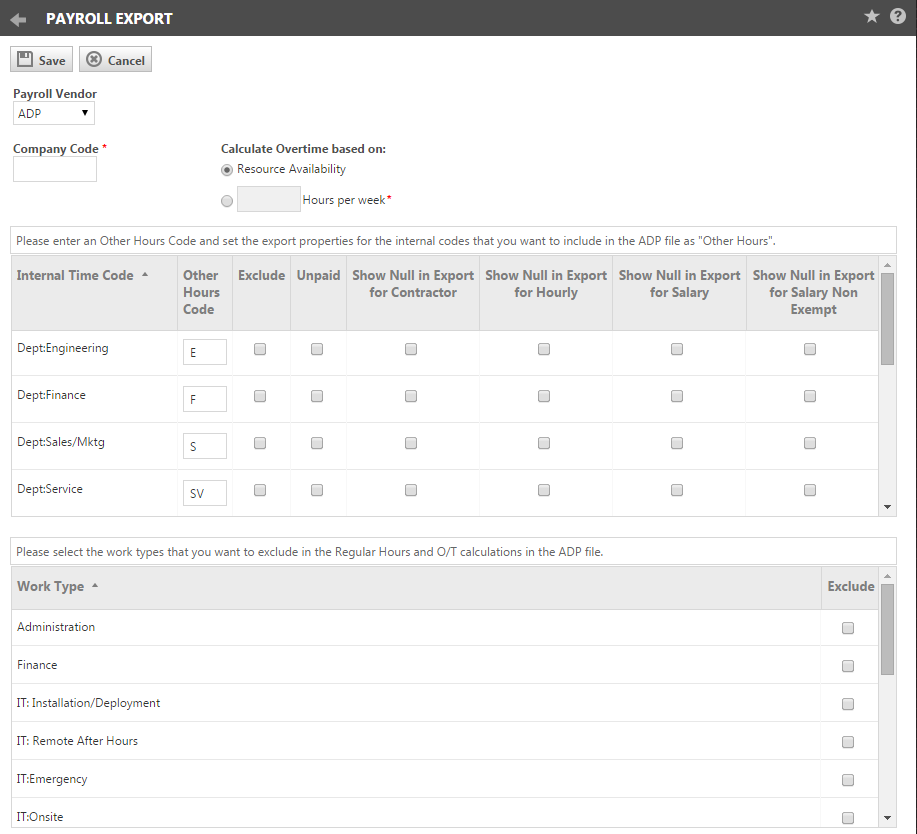
Setting your company code
Enter your ADP Company Code in the required Company Code field. This code is your local organization's identifier for ADP. It must be three or fewer characters.
Setting the available hours used to calculate overtime
Overtime is calculated as Regular Hours minus Availability.
This setting allows your local organization to determine what value to use for Availability. There are two options, Resource Availability or a set number of hours per week.
Resource Availability
With this option, availability is based on the total Available Hours per week set for each resource in Admin. The Available Hours are set on the HR tab of the Resource Management window: Left Navigation Menu > Resources (Users) > Right-click Resource Name > select HR tab. If a resource is available for 7 hours each day Monday through Friday for a total of 35 hours, then availability is calculated using 35 hours per week.
# Hours per Week
Select this option to specify a set number of hours per week to be used organization-wide for all resources when calculating overtime. The default setting is 40.00 hours per week. Every resource's availability is based on 40.00 hours per week.
If you select this option, there must be a number in the # of Hours field. The default is 40.00. You can enter any positive number up to 999.99.
Include internal time codes in export
This section displays a list of all of your current Internal Time Codes. Internal Time Codes track resource time that is not devoted to a specific customer or project. You add and edit Internal Time Codes in Left Navigation Menu > Admin > Admin Categories > Features & Settings > Finance, Accounting & Invoicing > Billing Codes.
From here, specify which Internal Time Codes to include in your ADP export as "Other Hours" and set export properties for those codes.
NOTE The selections made here will impact the export total for Regular Hours. Regular hours are calculated as Total Timesheet Hours minus Other Hours minus Unpaid Hours minus Excluded Hours.
- To include an Internal Time Code in payroll export, enter up to 10 characters into the Other Hours Code field.
These characters will identify the Internal Time Code in the export and appear in the Other Hours Code field in your ADP output.
- To include the Internal Time Code in the export but exclude the hours under this Internal Time Code from the Total Timesheet Hours, click to select the Exclude check box.
- To mark hours under this Internal Time Code as Unpaid, click to select the Unpaid check box. Unpaid hours are deducted from Timesheet hours to determine regular hours.
- To exclude time under this Internal Time Code from the export for specific payroll types, click to select the "Show Null in Export for" check box for the desired payroll types.
For example, if you select the "Show null in Export for Salary" check box, the export will display null ("") for this Internal Time Code for all Salary type timesheets.
- Click Save.
Select work types to exclude from calculations
The Work Types list includes all of the Work Types set up for your local organization through the Left Navigation Menu > Admin > Admin Categories > Features & Settings > Finance, Accounting & Invoicing > Billing Codes feature in the Admin module. They are specific to your local organization.
- Under Work Type, click to select the check box for any Work Type that should be excluded from the Regular Hours and O/T (Overtime) calculations in the ADP export file.
- When all codes are set up, click Save.


